Command Bar
Etch's Command Bar is present throughout the app and gives you a convenient way to move around the different contexts of the app (Builder/Content Hub/Styles Manager/etc.) and have access to all actions right at your fingertips.
It includes different modes and actions relevant to those modes and the current context.
Accessing the Command Bar and its modes
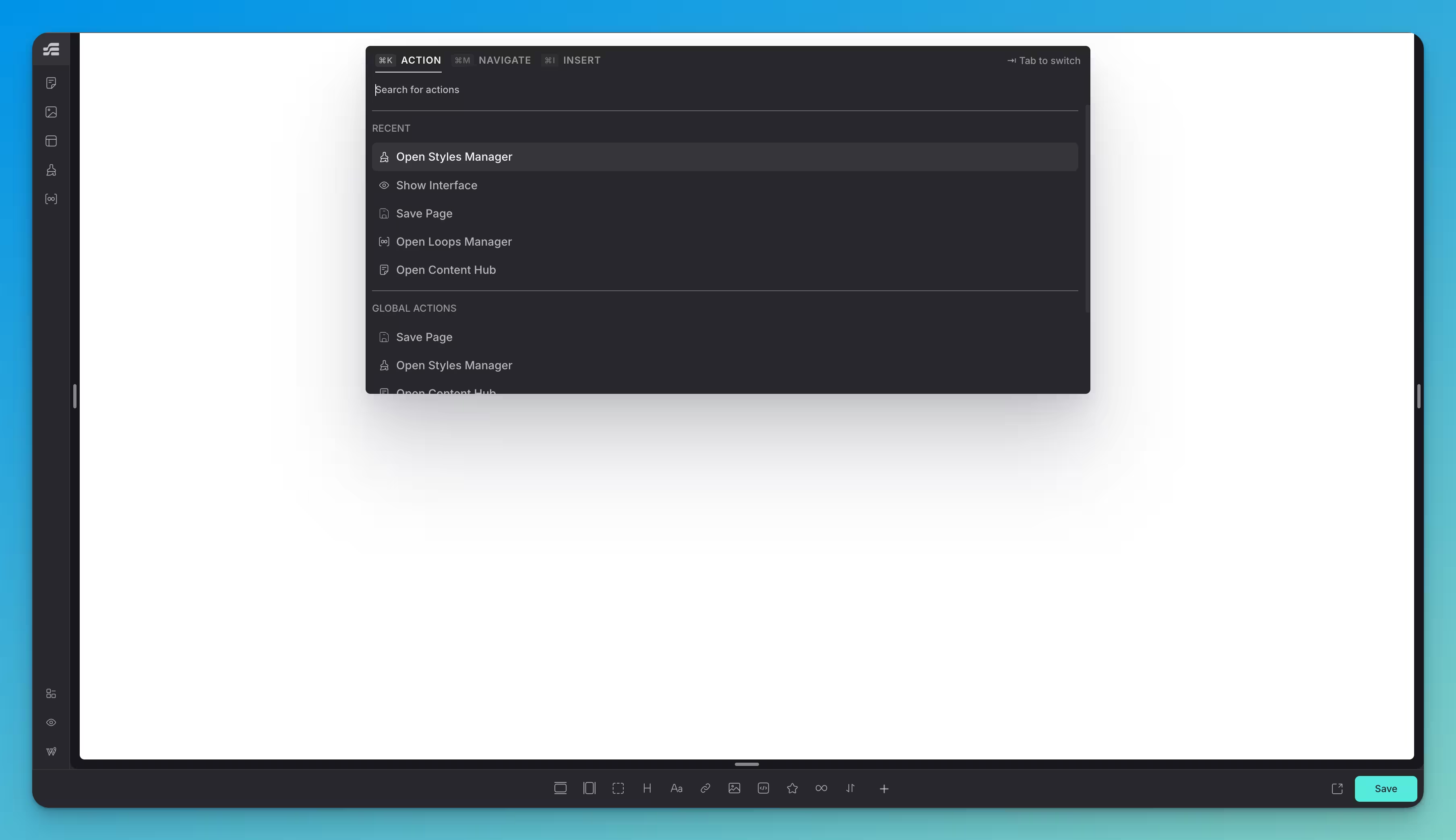
You can invoke the Command Bar by pressing Cmd + K on Mac, or Ctrl + K on Windows/Linux.
The different modes of the Command Bar can be accessed a few ways:
If the Command Bar is visible:
- You can press ⇥ Tab to cycle through modes from left to right, or ⇧ Shift + ⇥ Tab to cycle from right to left.
- You can jump to a specific mode by pressing its shortcut sequence (the shortcut key specific to the mode, immediately followed by ⇥ Tab).
- You can jump to your target mode by pressing its combination shortcut (Cmd + the mode's key on Mac, or Ctrl + the mode's key on Windows/Linux).
- Pressing the combination shortcut for a mode that is already active will close the Command Bar.
If the Command Bar is not already visible, you can invoke it directly in your target mode by pressing its combination shortcut.
| Mode | Shortcut sequence (with Command Bar visible) | Combination shortcut (regardless of state) |
|---|---|---|
Action | A, then ⇥ Tab | Cmd/Ctrl + K |
Navigate | N, then ⇥ Tab | Cmd/Ctrl + M |
Insert | I, then ⇥ Tab | Cmd/Ctrl + I |
Understanding the modes
- Action mode: Action mode allows you to perform actions relevant to your current context. As such, the actions available are dependent on what you're currently doing in Etch. Within the Builder context (the main editing view of Etch), you're able to perform actions such as interacting with the selected element (if there is one), switching to a context within the app (Builder/Content Hub/Styles Manager/etc.), or managing the Interface visibility. A more granular implementation of actions will be added in future releases.
- Navigate mode: Navigate mode allows you to quickly jump to different pieces of content within your project. You can search for and navigate to native Post Types (Pages and Posts) as well as other content types available on your website.
- Insert mode: Insert mode allows you to quickly add elements to your page. You can search for and insert native HTML elements (like
div,section,header, etc.), native Etch Components (when they are available in the future), as well as custom Components you've created in your project. You can also enter an Emmet abbreviation to quickly generate complex structures.
At the time of writing, only a subset of the Builder context actions are available. More actions and modes will be added in future releases.