The Modular Interface
The modular interface in Etch is designed to adapt to your specific needs and preferences. Whether you're a seasoned developer or just starting out, the interface can be customized to match your workflow, screen size, and skill level.
Customizable Panels
Etch's interface is built around a system of panels that you can show, hide, resize, and rearrange:
- Canvas: The main area where you can see what you're building
- Structure Panel: View and manage your page structure
- Properties Panel: Configure element settings and styles
- HTML Panel: Write and edit HTML markup directly in the interface
- CSS Panel: Write and edit CSS styles directly in the interface
- Javascript Panel: Write and edit JavaScript code directly in the interface
- Styling Panel: Configure visual styles using simple inputs
Moving Panels
You can "grab" a panel by clicking on the drag area in the panel header and dragging it to a new drop zone in the interface.
Available drop zones are:
- Sidebars (left and right)
- Bottom drawer
All drop zones accept multiple panels. In the sidebars, they'll stack. In the bottom drawer, they'll line up in a row.
Resizing Panels & Drop Zones
- Individual panels can be resized by grabbing the resize handle and dragging it up and down (sidebar panels) or left and right (bottom drawer). They're full collapsible.
- Sidebar drop zones can be made wider or narrower by grabbing their edge and dragging them left or right. It's collapsible to its minimum width.
- The bottom drawer can be made taller or shorter by grabbing its top edge and dragging up or down. It's fully collapsible.
- Double-clicking a drag handle will reset the size of the panel or drop zone to its default dimensions.
Controlling Panel Visibility
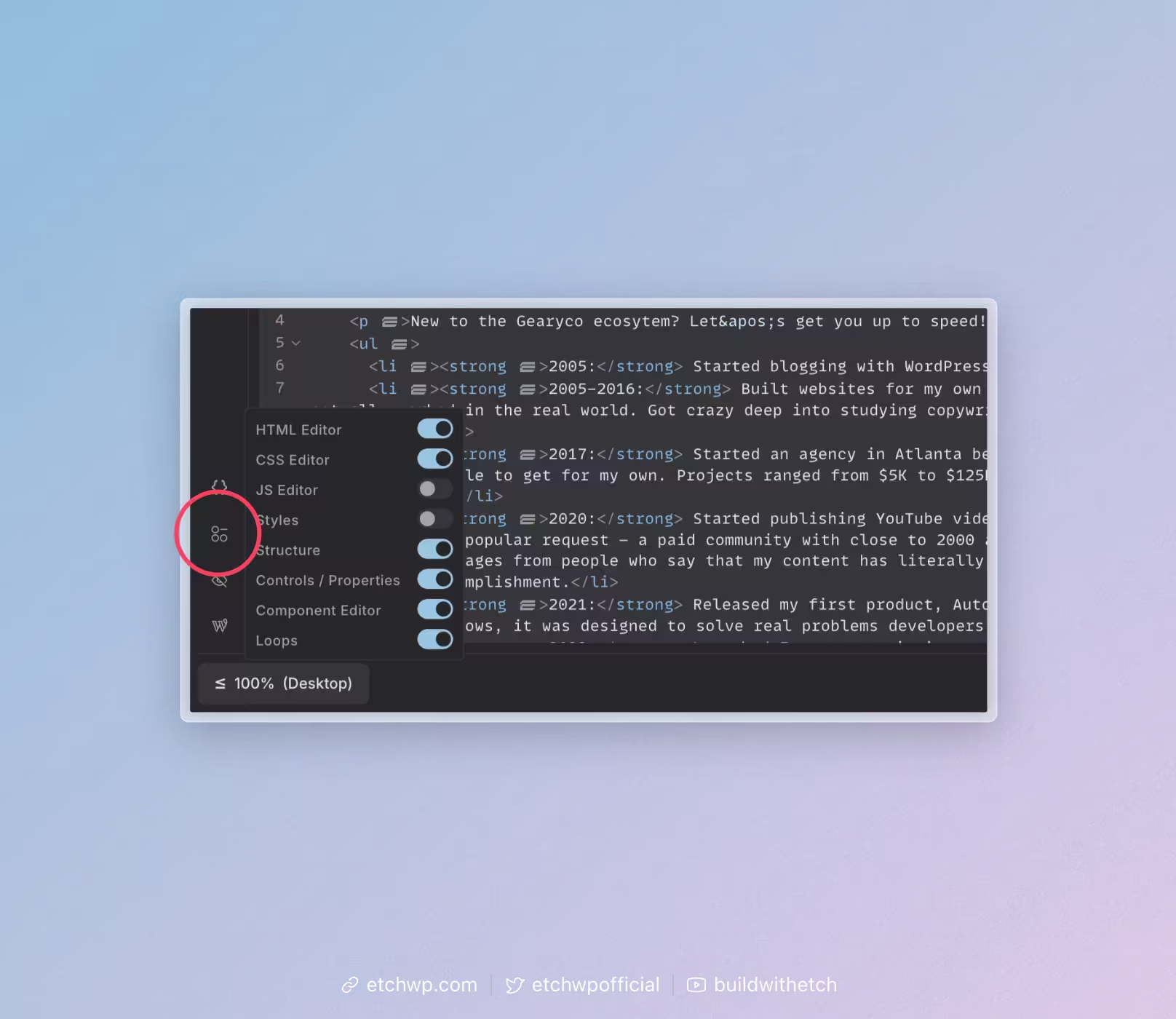
If you want to completely hide a panel so that it doesn't exist at all in the interface, you can toggle it off via the Panel Manager.
Controlling Interface Visibility
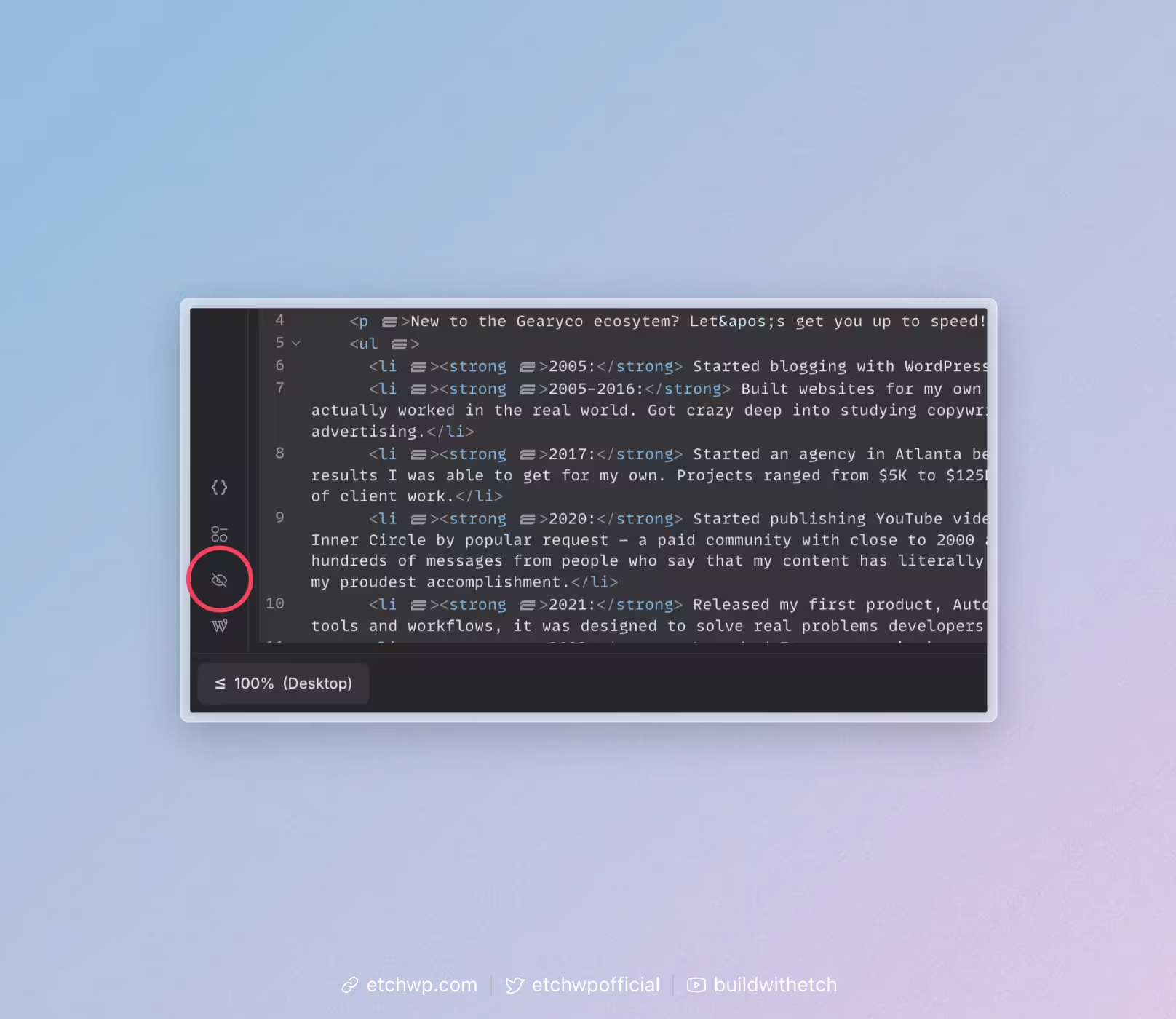
If you want to temporary hide all the panels to get a clear view of the canvas preview, you can toggle the entire interface on and off via by clicking on the eye icon in the Settings Bar. Only the Settings Bar will remain visible.
Workflow Adaptation
The modular design means you can:
- Focus on Design: Hide the code panel and structure panel to focus purely on visual design
- Code-First Approach: Maximize the code panel and minimize visual distractions
- Development Mode: Use all panels for full control and visibility
Screen Size Optimization
No more scrunched interfaces or unoptimized space when you have to work on different devices:
- Large Screens: All panels can be visible simultaneously
- Medium Screens: Panels can be collapsed or resized as needed
- Small Screens: Panels stack intelligently or can be toggled on/off
Skill Level Customization
The Etch interface grows with you:
- Beginner: Use a conventional page building workflow by turning off the code editors and only using the styling panel.
- Intermediate: Turn on the CSS editor and author some of your CSS.
- Advanced: Use all panels for maximum control and efficiency
This modular approach ensures that Etch works for you, not against you. You're never overwhelmed by panels you don't need, and you always have access to the tools that matter most for your current task.