CSS Panel
The CSS Panel provides a powerful code editor for writing and editing CSS styles directly within Etch's interface. Built on CodeMirror, it offers a professional coding experience with syntax highlighting, auto-completion, and advanced editing features.
Authoring CSS
The CSS editor is only available when the selected element has a valid CSS selector. You can add a selector via the Attributes Bar (UI) or by typing a class or ID into the HTML of the element (code).
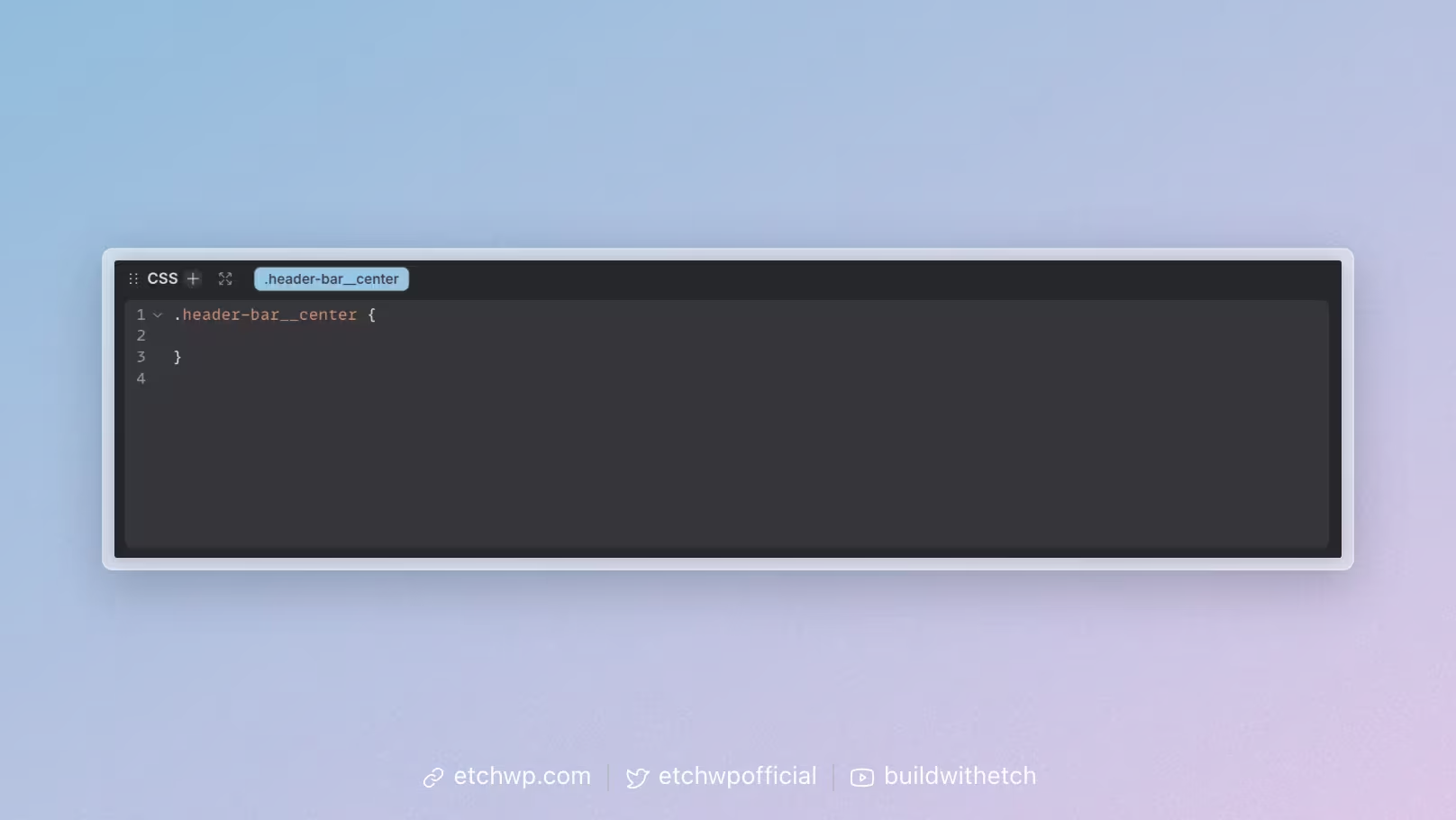
In Etch, once you've added a selector to an element, you'll see the Selector Pill in the CSS editor:
Attached CSS
Etch doesn't rely on traditional stylesheets because traditional stylesheets suck.
Instead, styles assigned to a selector are "attached" to the element they belong to. This has the following advantages:
- Elements are portable without losing styling: When you move, copy, import, or export an element or pattern or component, its styles move with it automatically. There's no need to hunt through global stylesheets or worry about breaking your design.
- CSS only loads when the element is present: Styles are attached to the elements they belong to and Etch checks to see if the element even exists, so unused CSS never bloats your site. This keeps your pages fast and your CSS lean.
- You always know where your styles are: All styles for an element are attached directly to it, making it easy to find, edit, and manage your CSS without searching through multiple files.
Since this is how we roll, when you a select an element and choose a selector to style, you'll see that selector in the code editor:
.your-selector {
    /* Code goes here */
}
You can't remove this or write outside of it. That wouldn't make any sense and there's no point.
While you might think this is a limitation, it's not. You can achieve everything you want to achieve with CSS nesting.
Where traditional page builders may use a dynamic root selector like %%root%%, this is not CSS. And since Etch has a much more powerful CSS and selector system, these little tricks and workarounds aren't required.
CSS Nesting
If you want to style children of the currently selected element, from the current selector, you can nest your CSS.
Here's an example:
.header {
    display: flex;
    flex-direction: row;

    nav {
        display: flex;
    }
}
A benefit of nesting is that all your styles are centralized on the parent element.
SCSS-like Syntax
If you're familiar with SCSS, you're familiar with "stemming" in SCSS nesting. This is particularly powerful when using BEM naming conventions.
Even though Etch isn't SCSS-powered, we've enabled SCSS-like stemming in Etch.
.card {
    display: flex;
    flex-direction: row;

    &__heading {
        font-size: var(--h2);
    }
    &__description {
        font-size: var(--text-s);
    }
    &__link {
        color: var(--neutral);
    }
}
&__, &_, &--, and &- will all parse correctly, where the ampersand represents the parent selector. This dramatically reduces the amount of typing you have to do and makes copying AI-authored CSS nesting easier, since AI tends to use SCSS nesting by default.
Styling an element based on its parent
One limitation you might think exists with CSS nesting is the inability to style the current selector based on a parent selector.
For example, how can you write .hero .card {} from within the .card element?
This is actually possible. You do it by reversing the order of the & selector.
.card {
    .hero & {
        /* styles for the card when the card is in .hero */
    }
}
There's no limitation to Etch's strategy for CSS authoring. By using vanilla CSS nesting techniques, you can achieve any type of selector combination.
Auto Variable Wrapping / Auto-complete
Variables are awesome, but typing them isn't. Nobody wants to write var() over and over again.
For this reason, we've added auto variable wrapping in Etch. You can trigger it by typing the variable stem. Etch will detect that you're typing a variable and then you can choose to auto-complete it by hitting tab, enter, or semi-colon.
For example: --primary will expand to var(--primary).
You can even expand multiple vars at once:
.card {
    padding-inline: --space-m --space-l;
}
Will expand to:
.card {
    padding-inline: var(--space-m) var(--space-l);
}
Note: This also works in CSS styling inputs by hitting Enter to trigger the expansion.
Auto Calc Wrapping
Similar to auto variable wrapping, Etch also supports auto calc wrapping. You can trigger it by typing mathematical expressions without the calc() function, and Etch will automatically wrap them for you.
For example: 100px + 2rem will expand to calc(100px + 2rem).
Hint: Auto calc wrapping works with auto variable wrapping as well, so feel free to calculate variables without having to write var().
Bi-Directional Sync With Styling Inputs
Another huge advantage of Etch is the elimination of "scattered styling."
In traditional page builders, when you use a combination of CSS styling inputs and custom CSS, you end up with CSS that's scattered all over the place.
In Etch, all your CSS is synced to the selector, regardless of whether you wrote it manually or used styling inputs. This means you always have a single source of truth for all your styles.
When you use styling inputs, Etch automatically generates the corresponding CSS and places it in the CSS Panel. This ensures that:
- No scattered styling: All styles are in one place.
- Easy debugging: You can see exactly what CSS is being applied.
- Consistent workflow: Whether you use inputs or write CSS manually, everything goes through the same system.
- Better performance: We can detect exactly what needs to be loaded and only load that code.
- Unprecedented portability: You can easily import/export patterns and components without losing or breaking styling.
- Unprecedented scalability: You can easily rename selectors without losing or breaking styling.
This bi-directional sync means that changes in the CSS Panel are reflected in the styling inputs, and vice versa. You can start with styling inputs and then fine-tune in the CSS Panel, or write CSS manually and see the values populate in the styling inputs.
Keyboard Shortcuts
The CSS Panel includes many powerful keyboard shortcuts to speed up your workflow:
Multi-Cursor and Selection
- Cmd+D (Mac) / Ctrl+D (Windows/Linux): Select the next occurrence of the current selection
- Cmd+Shift+L (Mac) / Ctrl+Shift+L (Windows/Linux): Select all occurrences of the current selection
- Alt+Click: Add additional cursors at click positions
- Cmd+Alt+Up/Down (Mac) / Ctrl+Alt+Up/Down (Windows/Linux): Add cursors above/below
Search and Replace
- Cmd+F (Mac) / Ctrl+F (Windows/Linux): Open search dialog
- Cmd+H (Mac) / Ctrl+H (Windows/Linux): Open search and replace dialog
- Cmd+G (Mac) / Ctrl+G (Windows/Linux): Find next occurrence
- Cmd+Shift+G (Mac) / Ctrl+Shift+G (Windows/Linux): Find previous occurrence
Navigation
- Cmd+Up/Down (Mac) / Ctrl+Up/Down (Windows/Linux): Scroll without moving cursor
- Cmd+Home/End (Mac) / Ctrl+Home/End (Windows/Linux): Go to beginning/end of file
- Cmd+Left/Right (Mac) / Ctrl+Left/Right (Windows/Linux): Go to beginning/end of line
Editing
- Cmd+Z (Mac) / Ctrl+Z (Windows/Linux): Undo
- Cmd+Shift+Z (Mac) / Ctrl+Shift+Z (Windows/Linux): Redo
- Cmd+X/C/V (Mac) / Ctrl+X/C/V (Windows/Linux): Cut/Copy/Paste
- Tab: Indent selection
- Shift+Tab: Unindent selection
Advanced Features
Auto-Completion
The CSS Panel provides intelligent auto-completion for CSS properties, values, and selectors. As you type, suggestions will appear automatically. Use Tab or Enter to accept suggestions.
Syntax Highlighting
CSS syntax is highlighted with different colors for properties, values, selectors, and comments, making it easy to read and understand your styles.
Error Detection
The editor will highlight syntax errors and provide helpful error messages to help you write valid CSS.
Code Folding
You can fold and unfold code blocks by clicking on the fold indicators in the gutter, or using Cmd+Shift+[ (Mac) / Ctrl+Shift+[ (Windows/Linux) to fold and Cmd+Shift+] (Mac) / Ctrl+Shift+] (Windows/Linux) to unfold.
Tips and Tricks
Working with Multiple Selectors
When you need to edit multiple similar selectors, use Cmd+D to select each occurrence one by one, or Cmd+Shift+L to select all occurrences at once. This is especially useful for applying consistent styles across multiple elements.
Search and Replace with Regular Expressions
In the search dialog, you can enable regular expressions for advanced find and replace operations. This is powerful for making systematic changes across your CSS.
Split View
You can have multiple panels open simultaneously. For example, keep the CSS Panel open while working in the Structure Panel to see how your style changes affect the layout in real-time.
Keyboard Navigation
Learn to navigate efficiently using keyboard shortcuts. This will significantly speed up your CSS editing workflow, especially when working with large stylesheets.
Enjoy a truly capable CSS authoring experience!