Canvas Color Scheme
Etch allows you to toggle between light and dark color schemes on the builder canvas. This is useful for previewing how your design looks in different color modes without leaving the editor.
Toggling the Color Scheme
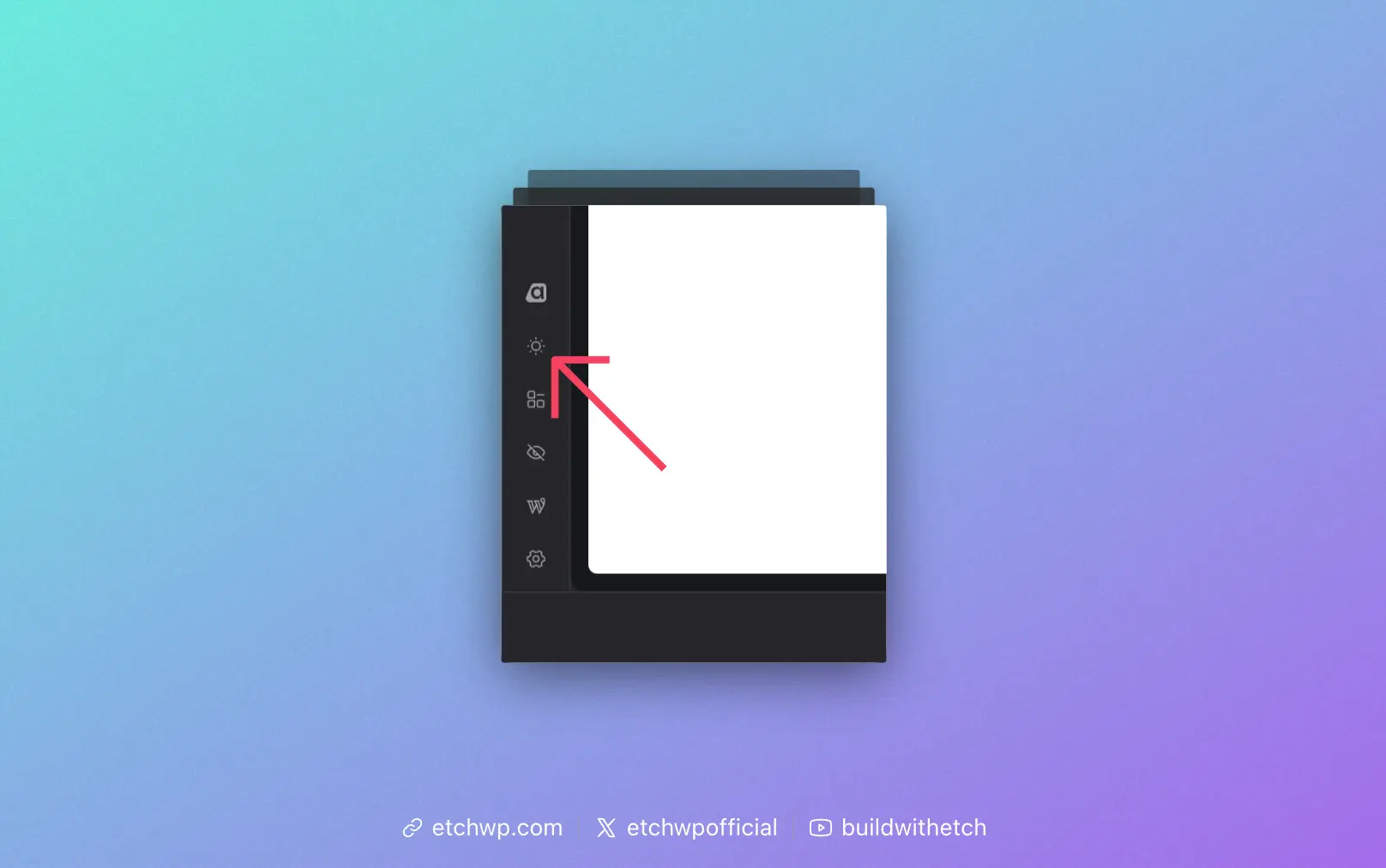
The color scheme toggle is located in the Settings Bar on the left side of the interface. Look for the sun or moon icon:
- Sun icon: Currently in light mode
- Moon icon: Currently in dark mode
Click the icon to switch between light and dark modes.
How It Works
When you toggle the color scheme, Etch sets the color-scheme CSS property on the canvas iframe's :root element. This affects:
- Browser default styles (scrollbars, form controls, etc.)
- Any CSS that uses
light-dark()color function - Elements that respect the
color-schemeproperty
Per-Page Setting
The color scheme preference is saved per page/post. This means you can have different color scheme settings for different pages in your project, and Etch will remember your preference for each one.
Use Cases
- Dark mode preview: Quickly check how your design looks in dark mode
- Testing
light-dark()colors: Verify that yourlight-dark()CSS function values work correctly - Form control styling: See how browser-default form controls appear in each mode
- Scrollbar appearance: Preview how scrollbars render in light vs dark mode