Attributes Bar
Etch's Attributes Bar is fastest and easiest way to add attributes to an element.
An attribute is a key-value pair added to an HTML element that controls its behavior, appearance, or provides additional information. Common attributes are things like: IDs, classes, ARIA labels, and data attributes.
Unlike traditional builders, Etch has a full attribute and selector system, not just a class system. Not only can you add any attributes to elements using the Attributes Bar, you can add selectors for them as well.
Accessing the Attributes Bar
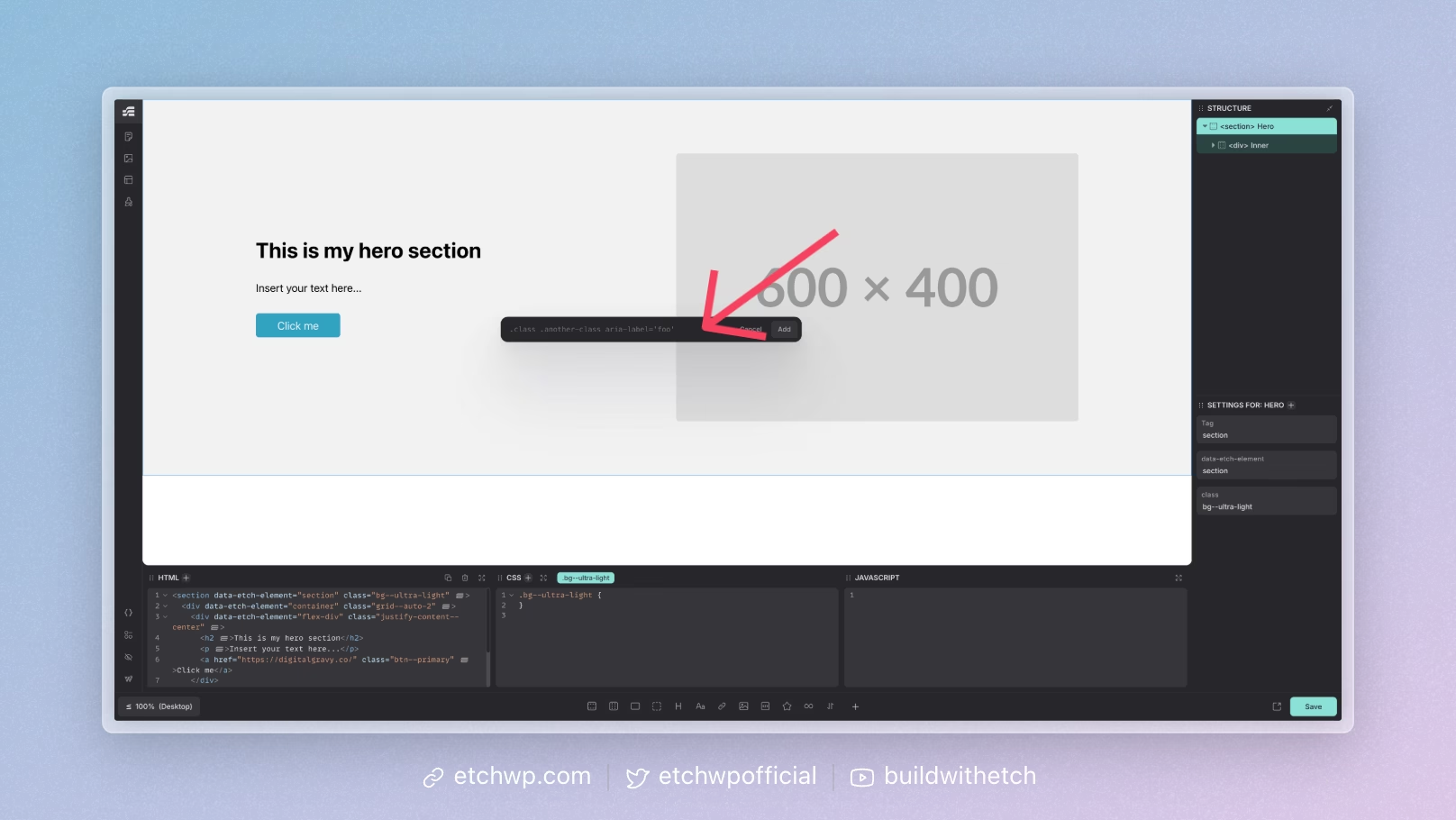
You can access the Attributes Bar by selecting any element and pressing Cmd + Return on Mac, or Ctrl + Return on Windows/Linux.
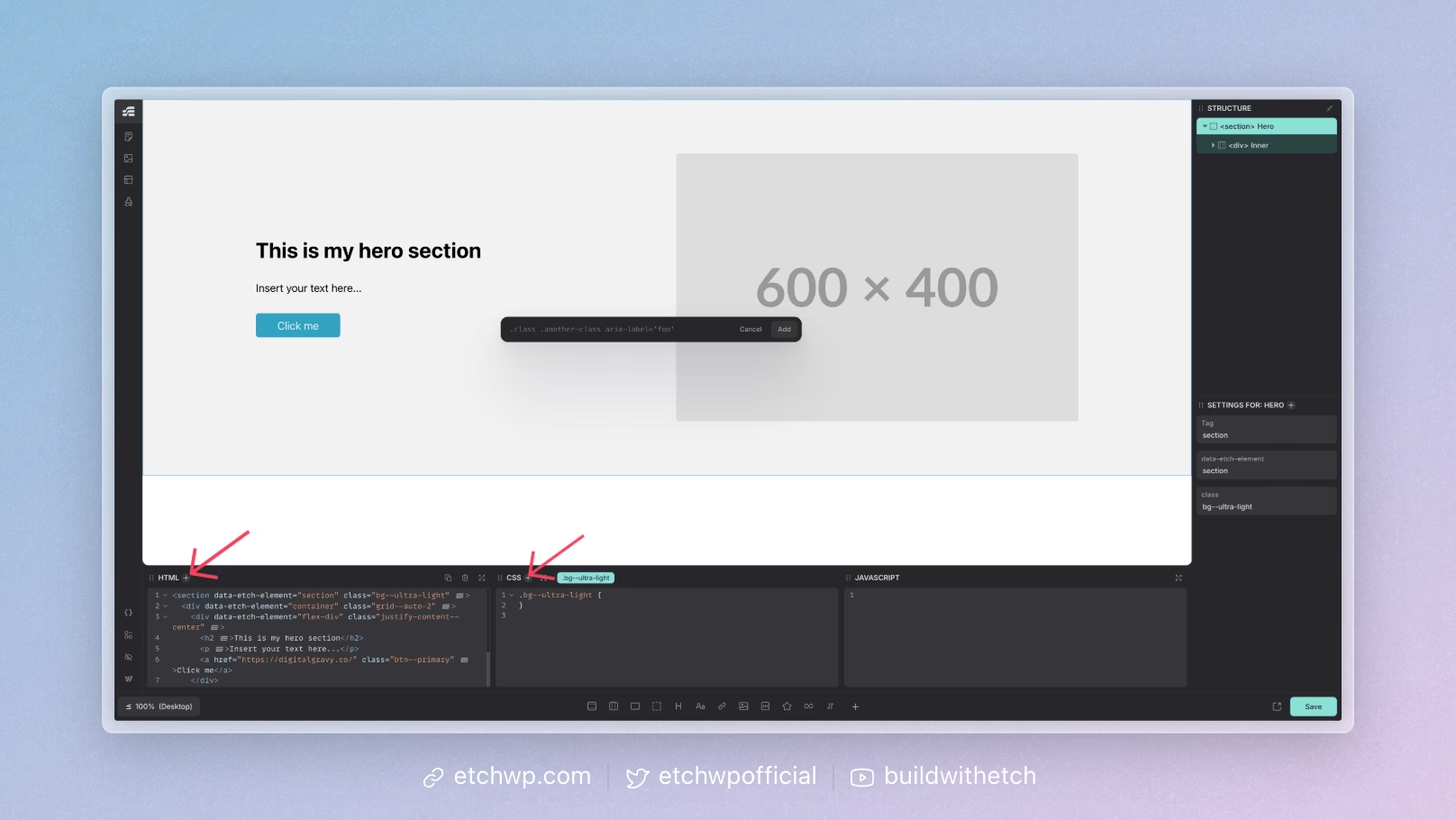
You can also click the "+" icon in the header of the HTML or CSS panels.
Adding Attributes
The Attribute Bar accepts one or multiple attributes and selectors and you're free to mix and match attributes and selectors.
Basic Selectors
The most common and basic example of adding a selector is adding a class or ID.
You add a class by writing the class name just like you'd write it in a CSS stylesheet. This will add the class to the class attribute on the element and create a selector for it that can be styled.
.my-class
IDs work the same way:
#my-id
You can add both at the same time:
.my-class #my-id
Random Selectors
If you need a one-off class or ID, Etch can auto-generate a unique one with rand.
.rand
This works for both classes .rand and IDs #rand.
Pseudo Classes
You can easily add pseudo classes and pseudo elements as selectors:
.my-class:hover .my-class::before .my-class::after
In some cases it's very convenient to create selectors like this, but in other cases it may be better to use CSS Nesting on your parent selector to manage the styles for these things as nesting will result in consolidated CSS that can be managed in one place. Up to you!
Other Attributes
If you want to add a data attribute, aria-label, etc. to an element:
data-attribute="my-data" aria-label="This is accessible"
This will add the attributes to the HTML, but will not generate selectors. If you want to generate a selector for these items, put them in brackets (just like CSS):
[data-attribute="my-data"]
Complex and Compound Selectors
The Attribute Bar accepts complex and compound selectors, but these need to be put in braces:
{.hero h1}
Any valid CSS selector, regardless of complexity, is supported.
In some cases it's very convenient to create selectors like this, but in other cases it may be better to use CSS Nesting on your parent selector to manage the styles for these things as nesting will result in consolidated CSS that can be managed in one place. Up to you!
Styling Selectors
Styling in Etch is based on the Selector Pill that's currently selected. You can style them with the CSS editor.