Loops
Loops in Etch allow you to dynamically repeat content or components based on data sources, such as lists of posts, products, users, or custom data.
You can use loops to render lists, grids, or any repeated structure, with full support for dynamic data. This enables you to build powerful, data-driven layouts visually.
Loop Data Sources
Etch supports several types of loop data sources:
- WP Query: Query posts or custom post types from WordPress.
- JSON: Use static or dynamic JSON data as the source.
- WP Terms: Query taxonomy terms (categories, tags, etc.).
- WP Users: Query WordPress users.
How Loops Work
- Loops are implemented via the "Loop" element.
- The Loop element is configured with a data source (e.g., a WP Query, JSON, etc.) and optional parameters.
- For each item in the data source, Etch renders the inner elements, injecting the current item's data into the context.
- You can use dynamic data keys (e.g.,
{item.title}) inside child elements to access the data of the current loop item.
Custom Queries
Suppose you want to display a list of blog posts using a custom WP Query. A custom query is any query that you explicitly configure in Etch (via the Loop Manager) to pull a specific set of results — for example, recent posts, your featured products, or a hand‑picked set of resources you've curated using a taxonomy query.
On regular pages, you'll typically reach for a custom query when you need to loop over content - for example, showing the 3 most recent posts on your homepage. (Doing a custom query is required when doing a loop on a page. This is different than using the main query on templates, where the loop is often handled automatically.)
Here's how you define the query parameters in the Loop Manager:
// Query for latest 10 posts
$query_args = [
  'post_type' => 'post',
  'posts_per_page' => 10,
  'orderby' => 'date',
  'order' => 'DESC',
  'post_status' => 'publish'
];
- Add a Loop element and configure it with the above WP Query arguments.
- Add child elements (e.g., Heading, Image) inside the loop.
- Use dynamic data keys like
{item.title}or{item.featured_image}in child elements to display post data.
Once your Loop element is connected to this custom query in Etch, your loop markup will look something like this:
{#loop your_loop_name as item}
  <!-- Render fields from the custom query, e.g. title, featured image, etc. -->
{/loop}
Example Build Out (Blog Cards in a Grid)
Here's the code for a blog post grid. The first question is, "What do I need to loop?"
<ul data-etch-element="container">
  <li>
    <article>
      <figure><img src="https://placehold.co/600x400" alt="" /></figure>
      <h2>Insert your heading here...</h2>
      <p>Insert your text here...</p>
      <a href="https://digitalgravy.co/">Click me</a>
    </article>
  </li>
</ul>
You might think we need to loop the article since that's the actual blog post card, but that's not the case here. That would loop the article over and over inside the same list-item.
What we really want to loop is the list-item to ensure that we maintain proper HTML structure.
If you want to do this with the Etch UI, select the list item element, then hold Command (⌘) on Mac or Ctrl on Windows, and click the "Loop" button in the toolbar. This will add the loop as a sibling of the list-item. You can then easily drag the list-item into the loop.
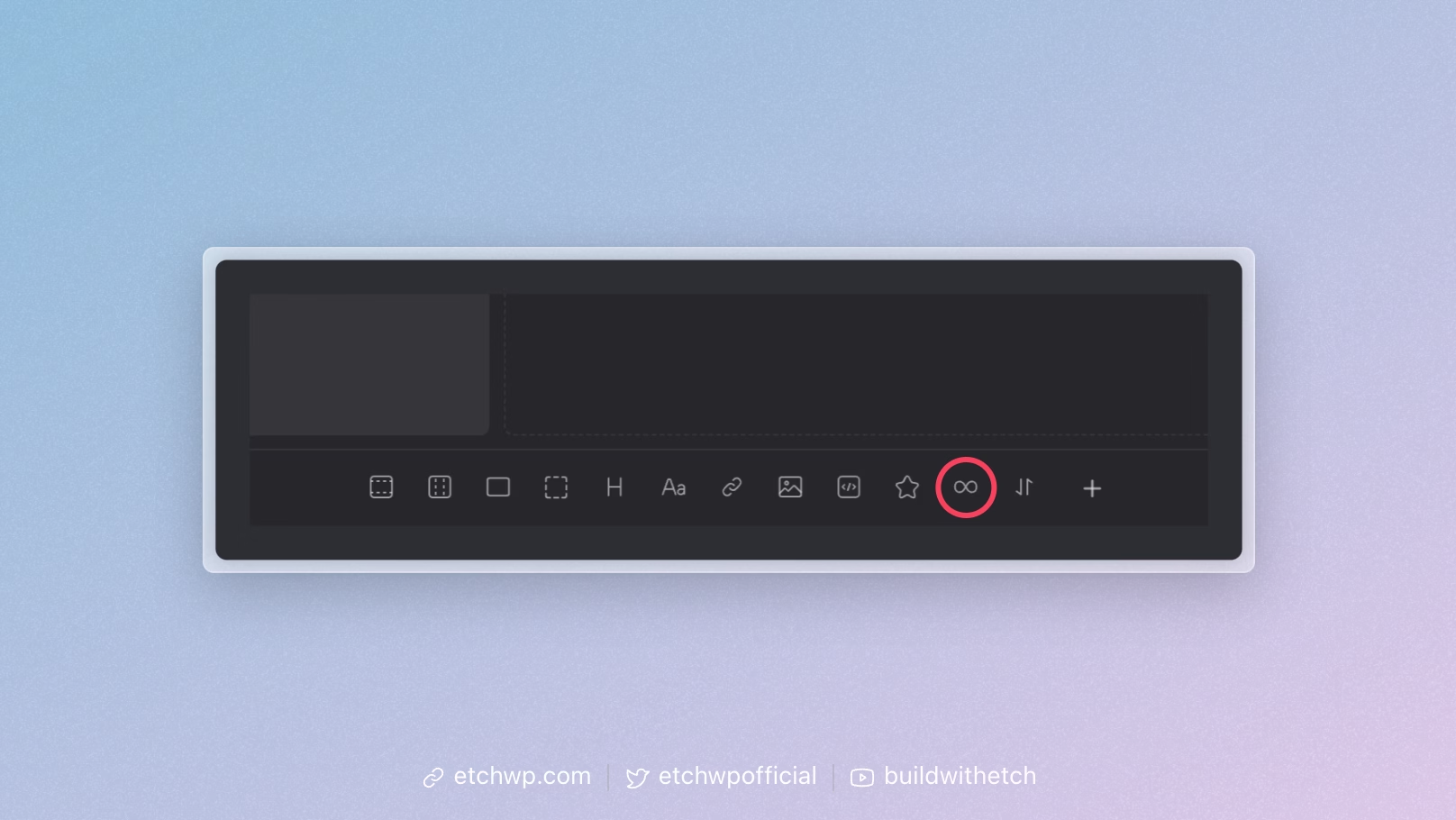
Your HTML will now look like this:
<ul data-etch-element="container">
  {#loop loopName as item}
    <li>
      <article>
        <figure><img src="https://placehold.co/600x400" alt="" /></figure>
        <h2>Insert your heading here...</h2>
        <p>Insert your text here...</p>
        <a href="https://digitalgravy.co/">Click me</a>
      </article>
    </li>
  {/loop}
</ul>
Make sure you choose the correct loop that you configured for your blog posts and Etch will start looping through your posts.
Inserting Dynamic Data
Looping cards with the same static data over and over again defeats the point of a loop, so the next step is to map the proper areas to your dynamic data keys.
Since our loop is saying {#loop loopName as item} we need to use item as stem for our dynamic data keys.
Anything that is unique data to the thing we're looping needs to be replaced with a dynamic data key. In this case, the blog post title, link to the post, excerpt, image src, and image alt. You can do this via the Etch UI or the HTML editor.
Here's our new output:
<ul data-etch-element="container">
  {#loop loopName as item}
    <li>
      <article>
        <figure>
          <img src="{item.featuredImage.url}" alt="{item.featuredImage.alt}" />
        </figure>
        <h2>{item.title}</h2>
        <p>{item.excerpt}</p>
        <a href="{item.permalink.relative}">Read more</a>
      </article>
    </li>
  {/loop}
</ul>
You can use dynamic data to replace pretty much any static data, even attributes like aria attributes.
In this example, each blog post as a link that says "Read more." That's not accessible because it lacks context as to where the user will be taken.
An aria-label can be used here to describe exactly which blog post the user is going to read when they click the link, and we can use dynamic data to inject the name of the post.
<ul data-etch-element="container">
  {#loop loopName as item}
    <li>
      <article>
        <figure>
          <img src="{item.featuredImage.url}" alt="{item.featuredImage.alt}" />
        </figure>
        <h2>{item.title}</h2>
        <p>{item.excerpt}</p>
        <a aria-label="Read {item.title}" href="{item.permalink.relative}">Read more</a>
      </article>
    </li>
  {/loop}
</ul>
Now you've learned two things: you can use dynamic data in attributes and you can also mix and match static and dynamic data. Fun!
Example: Custom JSON (Authors)
You aren't limited to just looping data that's in the WordPress database. Any custom dataset can be looped with JSON.
Suppose you have a list of authors and want to display their names. Format your data as a JSON string like this:
[{ "name": "Jane Austen" }, { "name": "Mark Twain" }, { "name": "Virginia Woolf" }]
Then you can loop it the same way we looped the blog post earlier!
- Add a Loop element and set the data source type to JSON.
- Paste the above JSON as the data source.
- Add a child element (e.g., Heading) inside the loop and use
{item.name}to display each author's name.
Inline Loops
Sometimes you just want to repeat a piece of content a fixed number of times — for example, 5 times.
The easiest way to achieve this is with an inline loop, where the data source is written directly in the loop markup.
{#loop [1,2,3,4,5] as item}
  <p>I will be repeated 5 times</p>
{/loop}
In this example, the variable item also holds the corresponding value from the array (1 through 5), which you can use inside the loop if needed.
Showing a "No Results" Message
When a loop has no items, it renders nothing by default.
If you want to display a message when this happens, you can add a second loop that only runs when the loop data returns no results:
<div>
  {#loop posts as item}
    <!-- Renders as normal, but when the loop returns no results, then nothing is rendered -->
    <p>{item.title}</p>
  {/loop}

  {#loop posts.length().equal(0, [1], []) as item}
    <!-- Only renders when the loop returns no results -->
    <p>No results</p>
  {/loop}
</div>
This is currently a workaround. A more official way to handle empty loop states will be added in the future.
Accessing the Index
When looping through data in Etch, you can optionally access the index of each iteration. This can be useful for tasks such as displaying item numbers, applying alternating styles, or conditionally rendering elements based on position.
To access the index, add a second variable name after your item variable in the loop declaration, separated by a comma.
You can choose any name for the index, but we recommend using one that clearly describes its purpose — such as index, i or idx.
The index variable behaves just like any other piece of dynamic data and can be used directly inside your markup:
{#loop recentPosts as post, index}
  <div class="post-card" data-post-idx={index}>
    {#if index === 0}
     <!-- Only render something for the first item -->
    {/if}
  </div>
{/loop}
The index will start at 0 for the first item and increase by one with each iteration.