Getting Started
This guide takes you from a sign-in screen to a published page.
Signing in
Studio lives at studio.etchbuilder.io.
- Enter the email address your account was created with.
- Enter your password.
- Select Sign in.
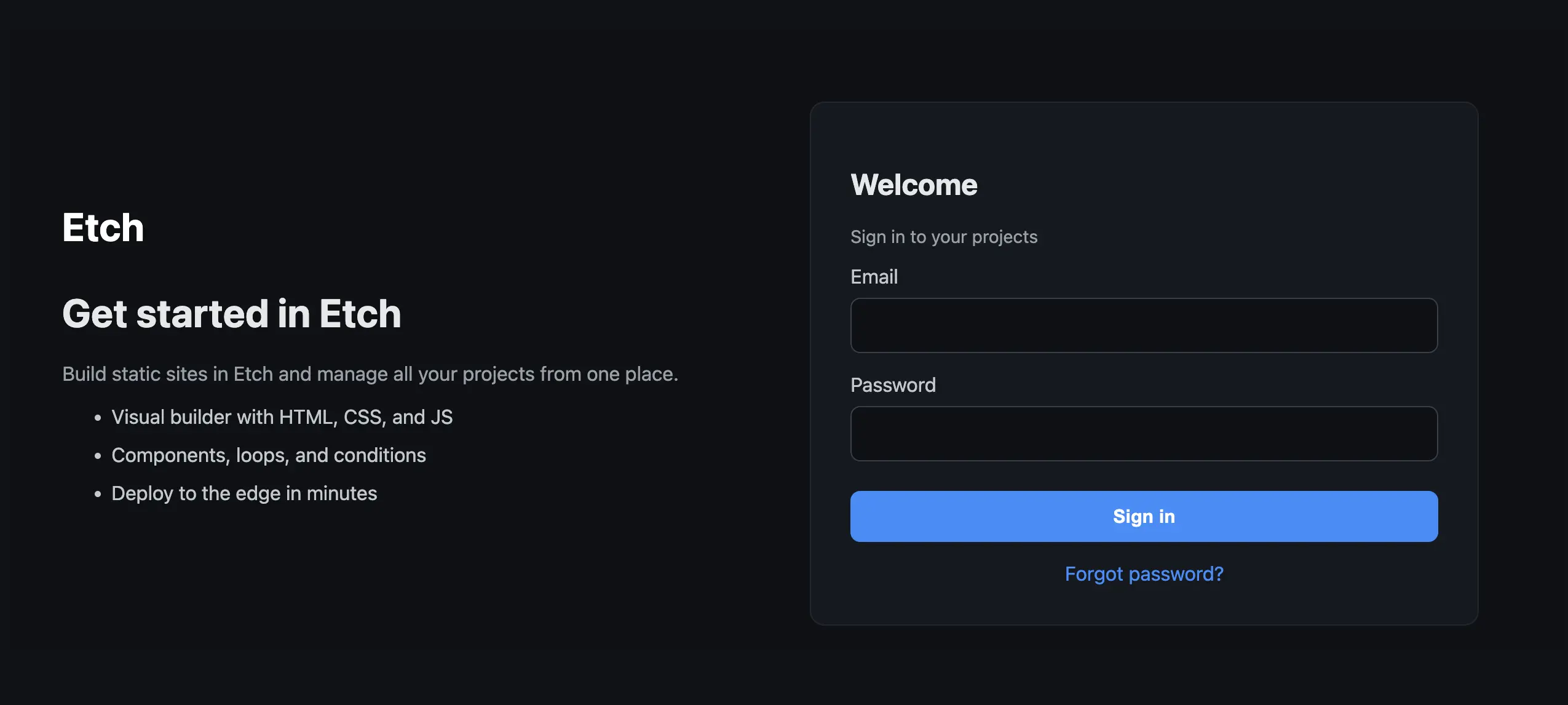
Accounts are currently created by the Etch team, so there's no self-serve sign-up. If you don't have one yet, ask us for access.
Creating a website
Signing in lands you on your Websites dashboard, which lists every project on your account.
- Type a name in the New website name field in the header.
- Select Create website.
The name has to be unique on your account. Studio creates the project and drops you straight into the builder for it.

Each project is a card on the dashboard; selecting one opens its builder. The card's menu deletes the project, which takes its pages, styles, assets and data sources with it.
Your account menu is at the bottom of the sidebar, and that's where Log out is.
Creating your first page
Pages live in the Content Hub, which you open from the left rail.
- Select Pages in the sidebar (the Content tab).
- In the table's footer row, type a title and, optionally, a slug. Leaving the slug blank derives one from the title.
- Select Create Page.
Use the home icon on a row to mark that page as the site's homepage; it becomes
index.html when the site is built.

Select the page to open it in the builder, then use the Elements picker in the action bar to add elements to the canvas.
Saving
Studio does not autosave. Use Save in the action bar, or ⌘ + S / Ctrl + S. Navigating away with unsaved changes warns you first.
Adding dynamic data
Static pages are the starting point, not the destination:
- Define a data source in the Data Manager (a JSON list, an external API, or
a JavaScript function) and reference it anywhere as
{data('key')}. See Data Sources. - Model your own content with content types, so a "Team member" page carries a job title and a photo alongside its blocks. See Content Types.
Publishing
Studio builds your site to static files. Getting them online is either a download or a direct deploy; see Deploying.
Etch Studio never hosts your site. It builds the artifact; where that artifact lives is your call, which also means your site's uptime never depends on ours.